


 Support
 Docs
Docs Roadmap
 Changelog

Generate instant product descriptions.
Create high-res. images from simple prompts.
Build store/product templates in seconds.
Fast and accurate product search results.
Let customer shop faster with voice search.
Increase upsell with suggestions that connects.

Recover lost sales by re-engaging customers with reminders.

Create and control your entire product catalog seamlessly.

Receive, track, and manage orders quickly and accurately.

Automate the logistics with accurate shipping classes.

Simplify tax collection and compliance without the stress.

Offer your customers diverse and secure payment options.

Brings all your business data together for smarter decisions.

Create and manage discount coupons that inspire sales.

Engage customers with engaging and impactful email campaigns.

Sell physical or digital or both at once, with ease.

Smarter selling with built-in AI tools and automation.

Customize your product pages with Gutenberg builder.
Switching to EasyCommerce from another ecommerce platform might seem difficult, but not anymore if you have this CSV (Comma Separated Value) Importer Addon by your side. This tool lets you transfer your store's entire product catalog within just minutes. This way, you can move hundreds, if not thousands, of products safely and without any errors.
Instead of adding each product manually, just upload a CSV file with all your product data (product name, description, price, quantity, etc.) and let the addon handle the rest for you. This saves your valuable time and effort so that you focus on selling rather than on hectic data entry sessions.
CSV import is the go-to solution for porting a large number of products and their associated data from one platform to another. EasyCommerce has made this task even easier with its CSV importer addon. Core functionality-
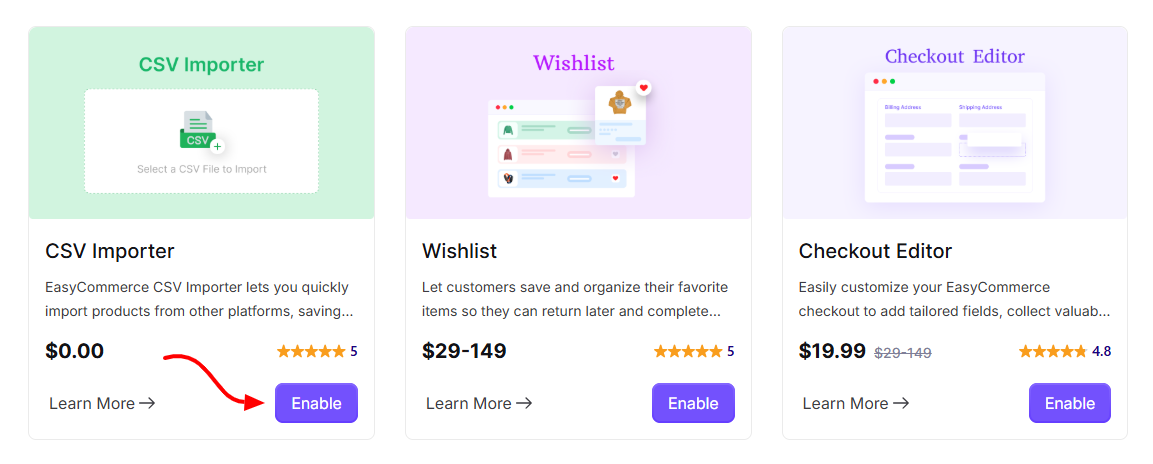
1. From your WordPress Dashboard, go to EasyCommerce → Addons, then install and activate the CSV Importer addon.
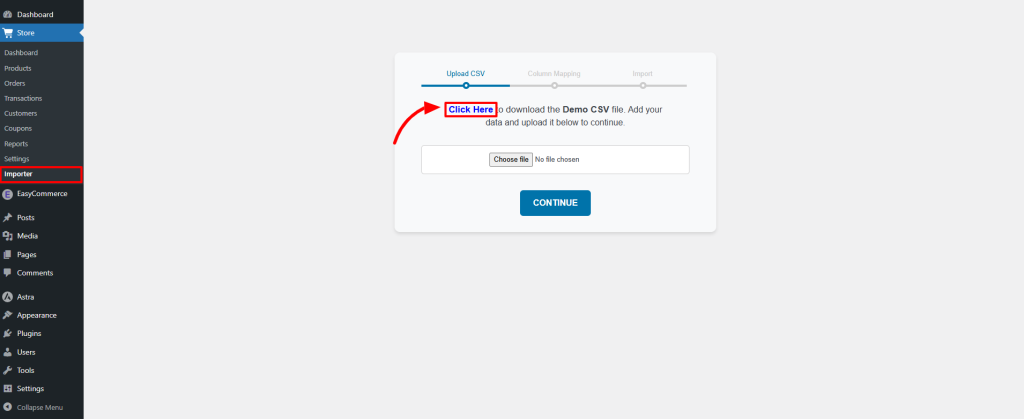
2. Head to Store → Importer and download the sample CSV file to see the required format.
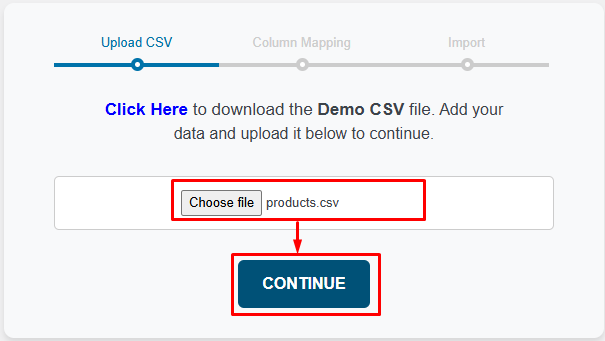
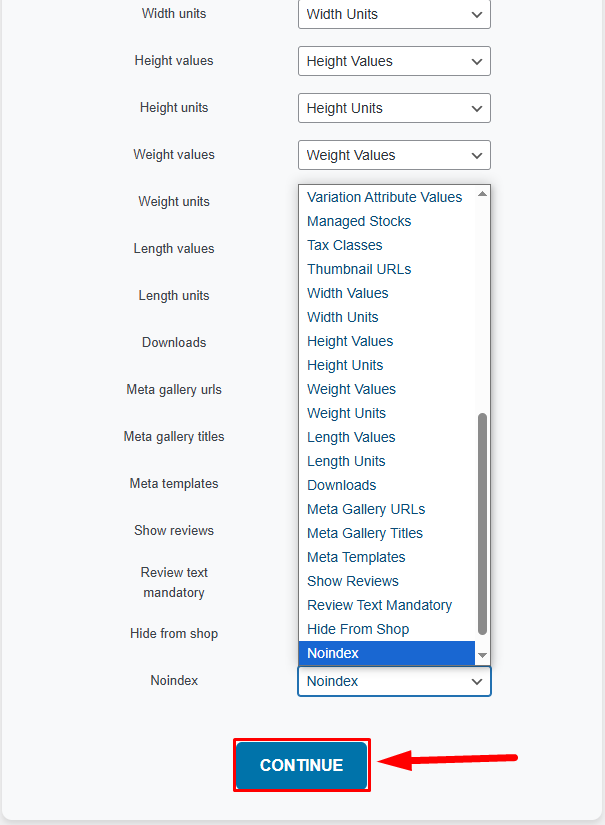
4. Fill in your product details following the structure of the sample CSV file. Upload your completed CSV file. If prompted, map your CSV fields to the correct product fields.
5. Review the column settings if you wish to remap the criteria fields.
6. Click “Import Now”. Your products will be added to your store in just a few minutes!
CSV importer on an eCommerce site can save a lot of time, but it also carries risks if not done carefully. Here’s what you should keep in mind before, during, and after importing products:
1. Always create a full backup before running an import. A single formatting mistake can overwrite or duplicate hundreds of products.
2. Follow the structure of the sample CSV provided by the addon or plugin. Even small mismatches (extra spaces, column name differences) can cause failed or partial imports.
3. Ensure all product names, prices, SKUs, and categories are accurate. Avoid empty rows or duplicate SKUs. Use proper image URLs (they should be accessible and valid).
4. Save the CSV file in UTF-8 encoding to prevent special character issues (like symbols or accented letters breaking).
1. Test with a few products first to confirm everything maps correctly.
2. Double-check that each CSV column (like “Product Name,” “Price,” “Stock Quantity”) matches the correct field in your eCommerce system.
3. Keep the browser tab open until the process completes - interrupting it midway may leave your catalog incomplete.
1. Check a few random entries to ensure titles, images, and categories look right.
2. Large imports can temporarily slow down your site, let the process finish before running other heavy tasks.